Translations
A demo has one main language and any number of translations, from more than 50 languages. Translations are made from the main language, so finish and review the main text first.
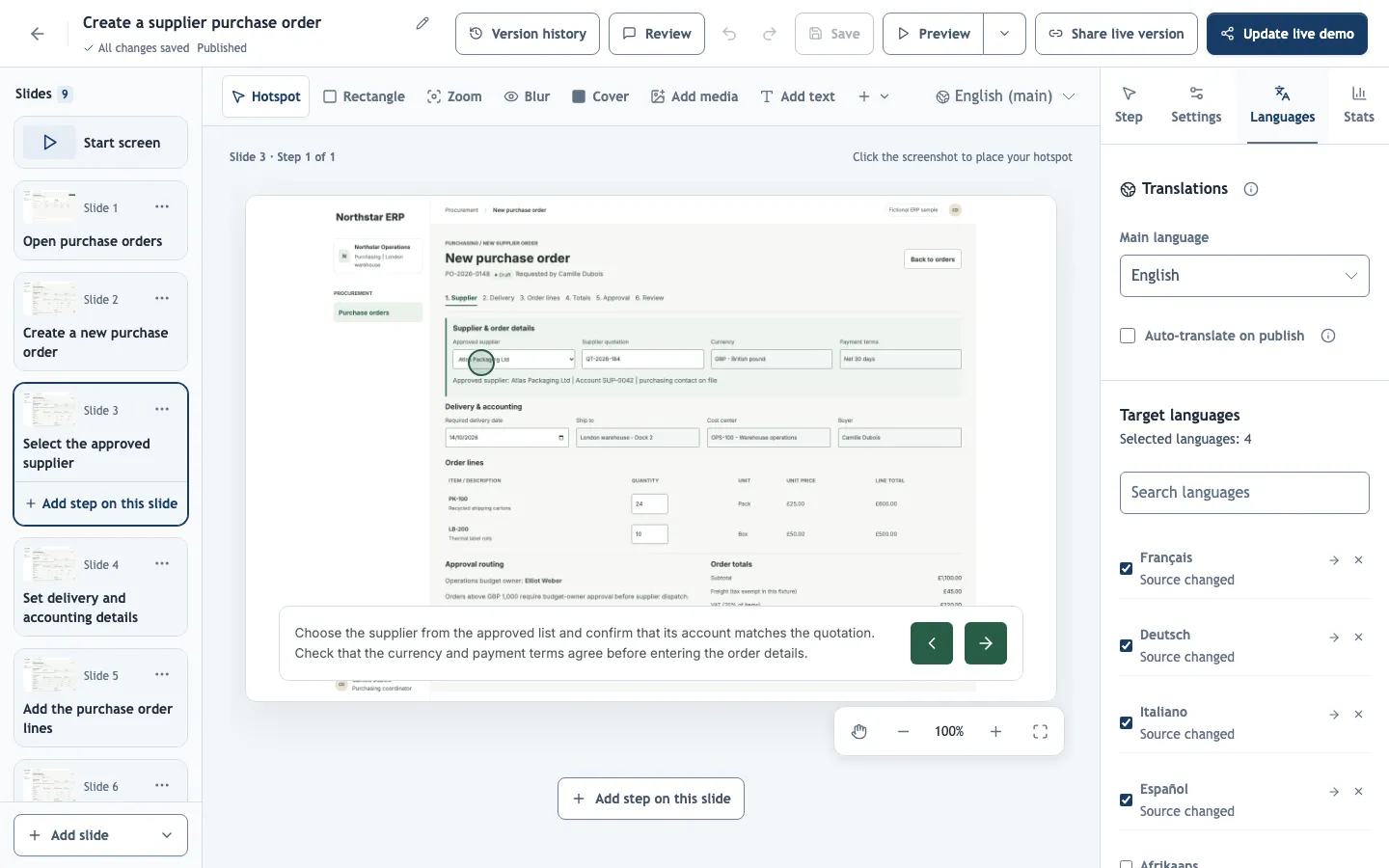
Translate a demo
In the Languages tab, check the Main language, select the Target languages and choose Translate selected languages. Translation runs as an AI generation task: you can keep editing or leave the demo while it runs, then apply the results and save.
Review and edit a translation
Choose a language in Editing language above the canvas to see and edit that translation directly on the canvas and in the Step panel. Review at least the step titles and button labels, which are short and lose context easily.
When you change main-language text later, the affected languages show Source changed and the steps show This step needs translating. Translate again, or edit the translation by hand. Translating a language again replaces its text and generated voiceovers, including your manual edits.
Auto-translate on publish
Auto-translate on publish updates missing and outdated translations each time you publish, which keeps every language in step with the main text. It counts toward your monthly AI usage; draft saves do not.
If translation continues in the background or you cancel it, the demo is not published. Apply the translations when they are ready, then publish again.
What is translated
- Step titles, descriptions, narration scripts, text elements, opening and closing screens, buttons, and quiz questions and answers.
- Text inside screenshots stays unchanged. For a fully localized demo, record it again in the product's other interface language.
- Voiceovers are separate per language. Generate or record them after translating; see Voiceovers.
Which language viewers see
A shared link opens in the main language. Viewers can switch with the Demo language menu in the player, or you can link to a language directly with ?lang= and a language code, for example ?lang=de; an unknown or untranslated code falls back to the main language. In training courses, lessons open in the learner's interface language when a translation exists.
The player's own buttons follow the viewer's interface language, which is separate from the demo language.