Demo settings
The Settings tab of the properties panel applies to the whole demo. Several of its sections are explained with the feature they control: aspect ratio, background music and voice, quiz settings, demo backups and unpublishing.
The Demo title and Introduction appear on the start screen, in demo hubs and in exports, so write the introduction as a one-sentence summary of what viewers will learn.
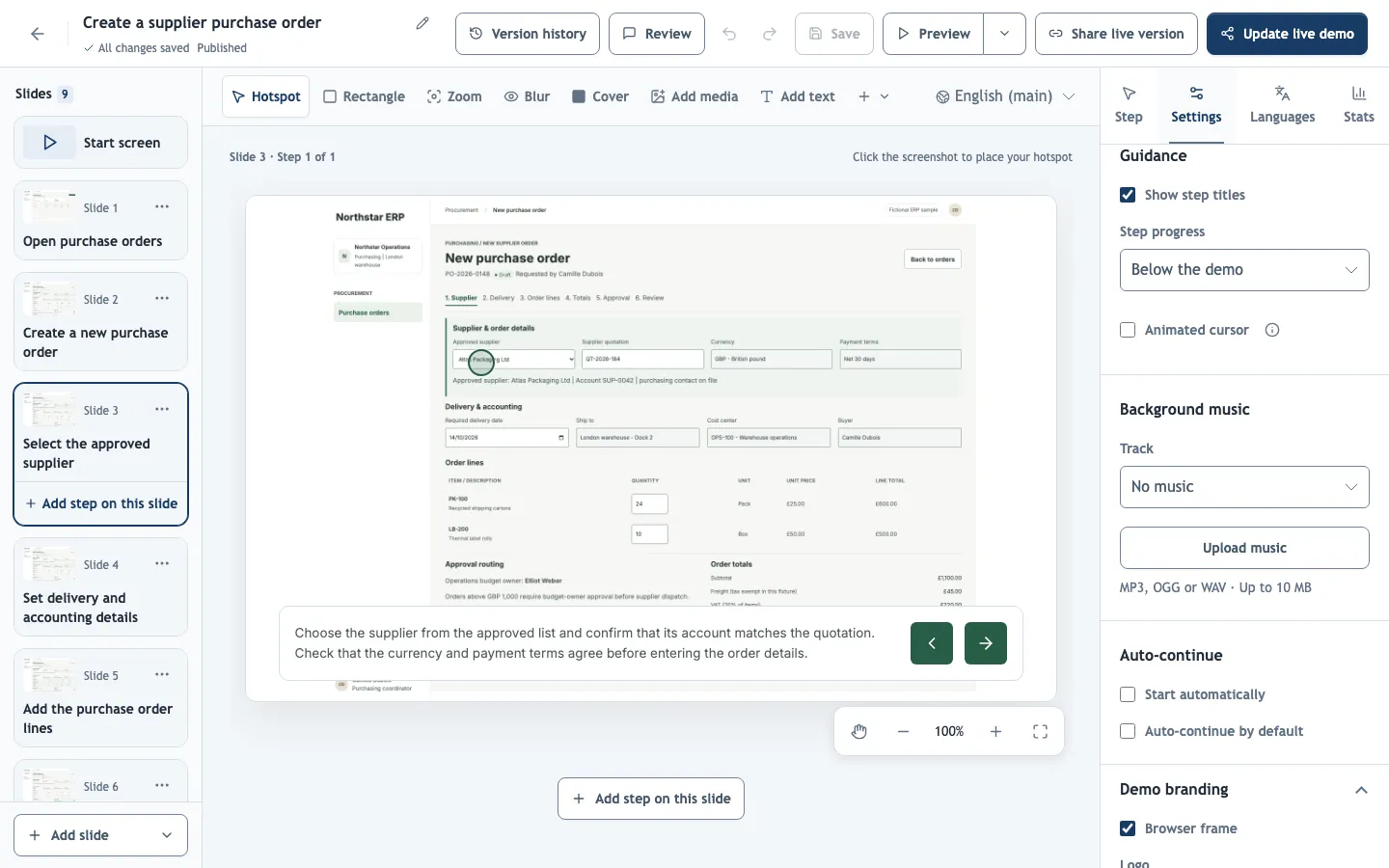
Guidance
- Step progress shows viewers how far they are. Below the demo (the default) is a step bar they can click to jump to any step; In the text box shows "Step n of m" and leaves the area below free; Hidden suits short demos.
- Animated cursor glides to each hotspot or highlight, which makes self-running demos easier to follow. It is off by default.
- Subtitles on by default shows the narration as text as soon as the demo opens. Viewers can still turn subtitles off, and only steps with a voiceover have any. It is off by default.
- Show step titles can be turned off when the descriptions stand on their own.
Auto-continue
New demos click through: viewers move on with the hotspot or Next. Auto-continue by default turns the demo into a self-running walkthrough: each step stays for at least the Minimum time per step (sec), then the Additional pause before next step (sec), and never cuts a voiceover short. Start automatically also skips the start button.
Older demos created without this setting advance on their own, at least 3 seconds per step, and the box shows ticked for them; untick it to make them click through. Individual slides can override this under Animation & timing in the Step panel. Browsers may block sound until the viewer clicks once, so a self-starting demo with narration may begin silently.
Demo branding
New demos copy the organization branding when they are created. After that, the demo keeps its own logo, colors, fonts and optional Browser frame, so later organization changes do not alter it.
Apply organization defaults replaces the demo's branding with the current organization branding and sets the demo's main language to the organization default. Existing text is not translated. Republish to show the result to viewers.
Visit button
Show visit button adds a button, for example Visit Northstar, that leads to your website. Unlike end-screen buttons, it stays visible during the whole demo: in the page header, or in the player's top bar when the demo is embedded. Clicks appear in link performance.