Your first demo
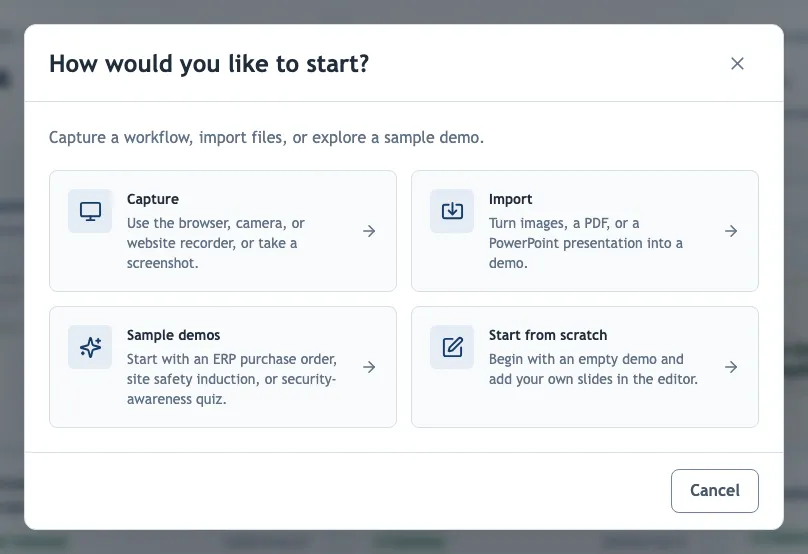
This walkthrough takes you from a few screenshots to a link you can send, using only features available on every plan. No screenshots at hand? Choose Sample demos in the creation dialog and edit an example instead.
1. Create the demo
Choose Create demo → Import → Screenshots or photos and select your images in the order of your workflow; each image becomes one slide. Pick Horizontal (16:9) for desktop software and Vertical (9:16) for phone screens.
2. Explain each step
For each slide, choose Hotspot and click where viewers should click, then write a Step title and Description in the Step panel. Generate with AI drafts both from the screenshot. To point at several places on the same screen, use Add step on this slide instead of duplicating the screenshot.
Write the title as the action (Open the Orders menu) and use the description for what the viewer needs to know: what to enter, what happens next, or why it matters.
3. Hide anything sensitive
Draw a Cover over personal data, customer names or credentials. A solid cover permanently replaces those pixels in the published demo; blur does not. See Hide sensitive information.
4. Preview, publish and share
Preview plays the draft exactly as viewers will see it. Publish creates the link, and Share & export lets you copy it or embed the demo.
Later edits stay in your draft until you choose Update live demo. See Publish and update.
What next?
- Record a real workflow with the browser recorder.
- Translate the demo or add a voiceover.
- Add a quiz or export a PDF guide.