Your workspace
After signing in you arrive at My demos, the dashboard of the organization selected at the top of the sidebar.
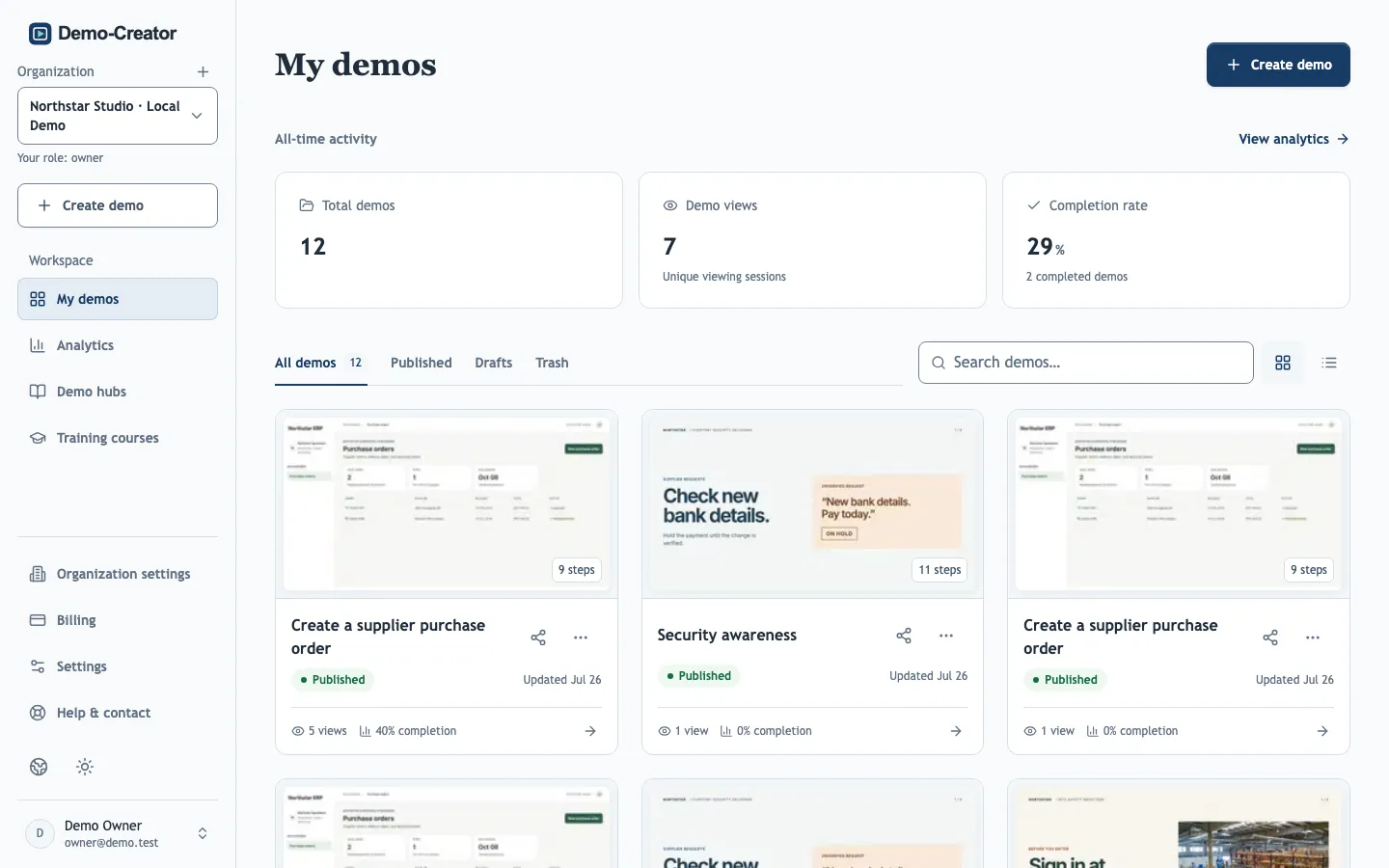
If a demo, button or setting seems to be missing, check the organization at the top of the sidebar. Demos, permissions and plan features all belong to it. Demo hubs and Training courses appear only for owners and admins.
Demo status
Each demo card shows one of three states:
- Draft — never published; no link exists yet.
- Published — the link shows the current draft.
- Unpublished changes — the link still shows an older version. Open the demo and choose Update live demo to publish your edits.
Only published demos can be shared, so Share & export is missing on drafts. The view counts and completion rates on the dashboard come from the published demo; editor previews are not counted.
Duplicate a demo
Duplicate in a demo's ⋯ menu creates a private, unpublished copy in the same organization. The copy gets its own link, analytics and version history once published; the original is unaffected. To copy a demo into another organization, use a demo backup.
Trash
Deleting a demo moves it to the Trash and stops its public link immediately.
- Deleted demos are kept for 30 days with their history, responses and analytics.
- Restore brings a demo back as an unpublished draft. Publish it again to reopen its link.
- Delete permanently removes the demo and everything attached to it. This cannot be undone.
Demos in the trash still count toward your organization's storage until they are permanently deleted.