Opening and closing screens
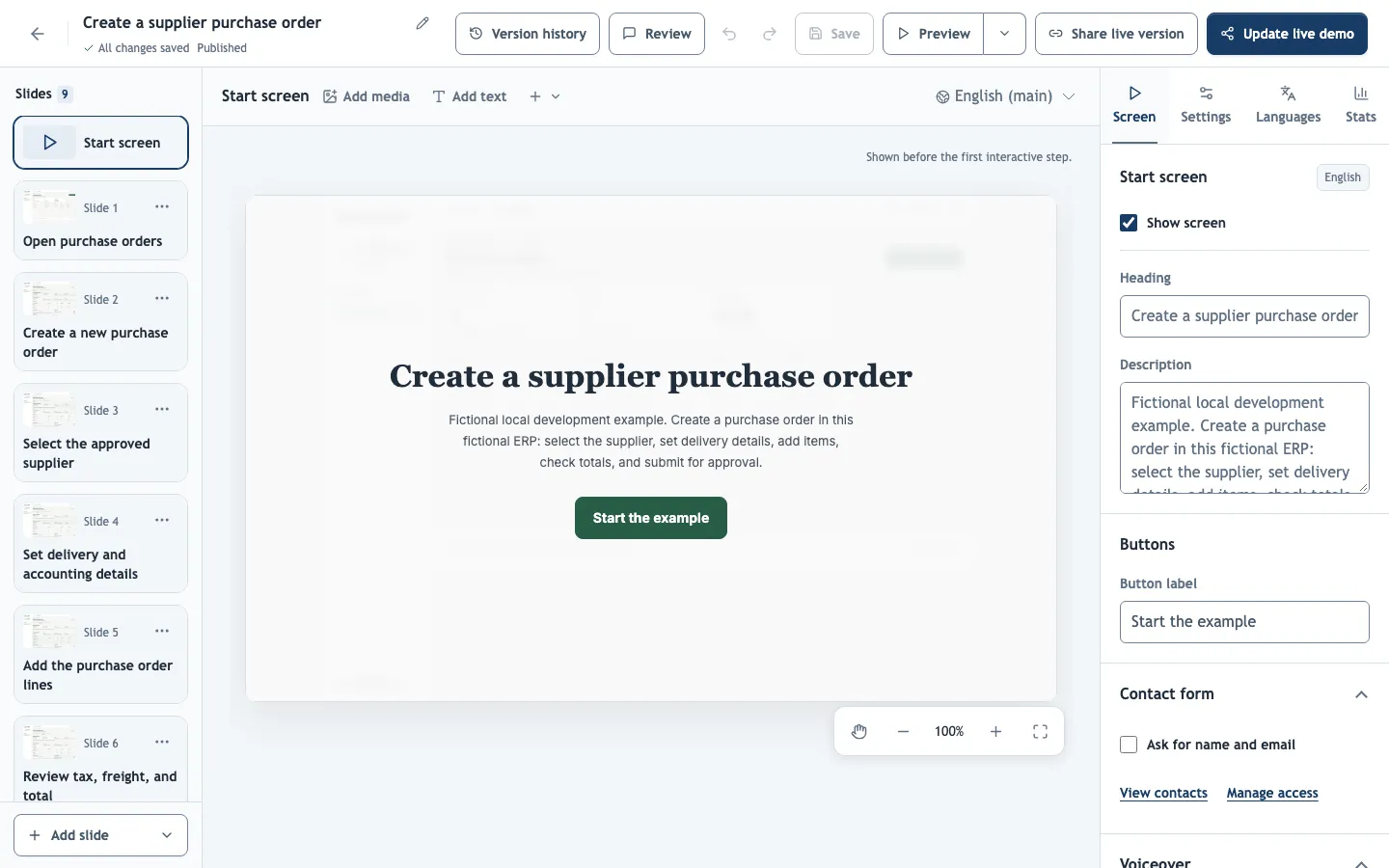
Every demo has a Start screen, shown before the first step, and an End screen, shown after the last one. Select them at the top and bottom of the slide list to edit them in the Screen tab.
Content
Use the start screen to tell viewers what they will learn and how long it takes; its heading and description default to the demo title and introduction. Use the end screen for the next action: a link to sign up, book a call or open the next demo. Both screens can carry images and a voiceover. Turning off Show screen skips a screen in playback but keeps its content.
Buttons
The start screen's button begins the demo, and the end screen can offer Show replay. Link buttons add calls to action that open a web page. Clicks on them appear in link performance, so you can compare which call to action works.
Contact form
Ask for name and email adds an optional form to the screen. Once it is ticked, the start screen also offers Require before viewing the demo, which hides the start button until the form is sent; unticking Ask for name and email clears it.
Submitted contacts appear in Analytics → Contacts and are emailed to the organization's owners and administrators. Viewers who already sent their details do not see the form again on the same device.
Require before viewing the demo only asks viewers for details; anyone can type any address. To restrict who can open a demo, use Access settings.
Contact forms are not shown in training courses, where learners sign in instead.