The editor
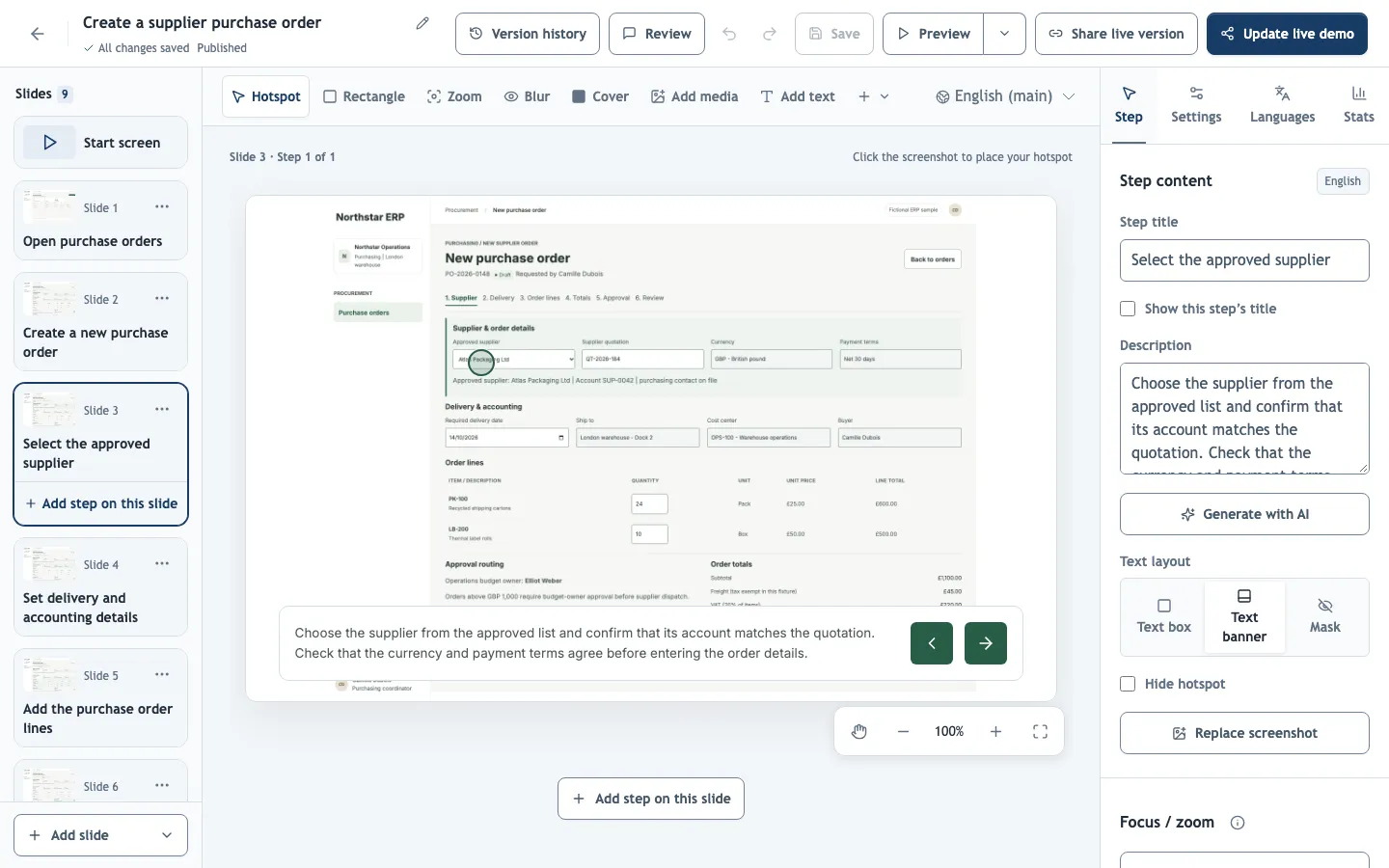
How the editor is organized
- The slide list on the left is the playback order, framed by the Start screen and End screen. Each slide's ⋯ menu holds the actions for that slide; on a slide with several steps, the selected step has its own ⋯ menu.
- The canvas shows the selected step. Its toolbar tools always apply to that step. The zoom controls below the canvas only change your view; to zoom the demo itself, use the step's Zoom tool.
- The properties panel on the right has four tabs. Step edits whatever is selected and is renamed Screen, Slide, Question or Quiz score to match. Settings applies to the whole demo, Languages holds the translations, and Stats summarizes the published demo's analytics.
- Editing language above the canvas switches the canvas and panels to a translation.
On a phone the editor shows one area at a time; switch with Canvas, Slides and Properties at the bottom. Members with the viewer role see Read-only access.
Autosave and conflicts
Your draft is saved automatically a moment after each change. If a save fails, your edits stay in the browser and the status shows Draft not saved with Retry save; do not close the tab until it shows All changes saved.
If a colleague saved the same demo in the meantime, the editor asks before replacing anything. Reload saved draft loads their version and discards your unsaved edits, so agree who edits a demo when several people work on it.
Undo and Redo cover the current session. To go back further, restore a saved version.
Keyboard shortcuts
| Keys | Action |
|---|---|
| Ctrl/⌘ + S | Save the draft now. |
| Alt/⌥ + up or down arrow | On a slide in the slide list, move the slide. |
| Arrow keys | Move the selected hotspot, highlight or element; on a resize handle, resize it. |
| Shift + arrow keys | Move or resize in larger steps. |
| Enter | On a text element, edit its text; on an image or video, crop it. |
| Delete or Backspace | Remove the selected element. |
| Ctrl/⌘ + mouse wheel | Zoom the canvas view. |