Voiceovers and background music
Each step, the start screen and the end screen can have a voiceover in every demo language. Viewers hear it in the player, with subtitles available, and video exports include it.
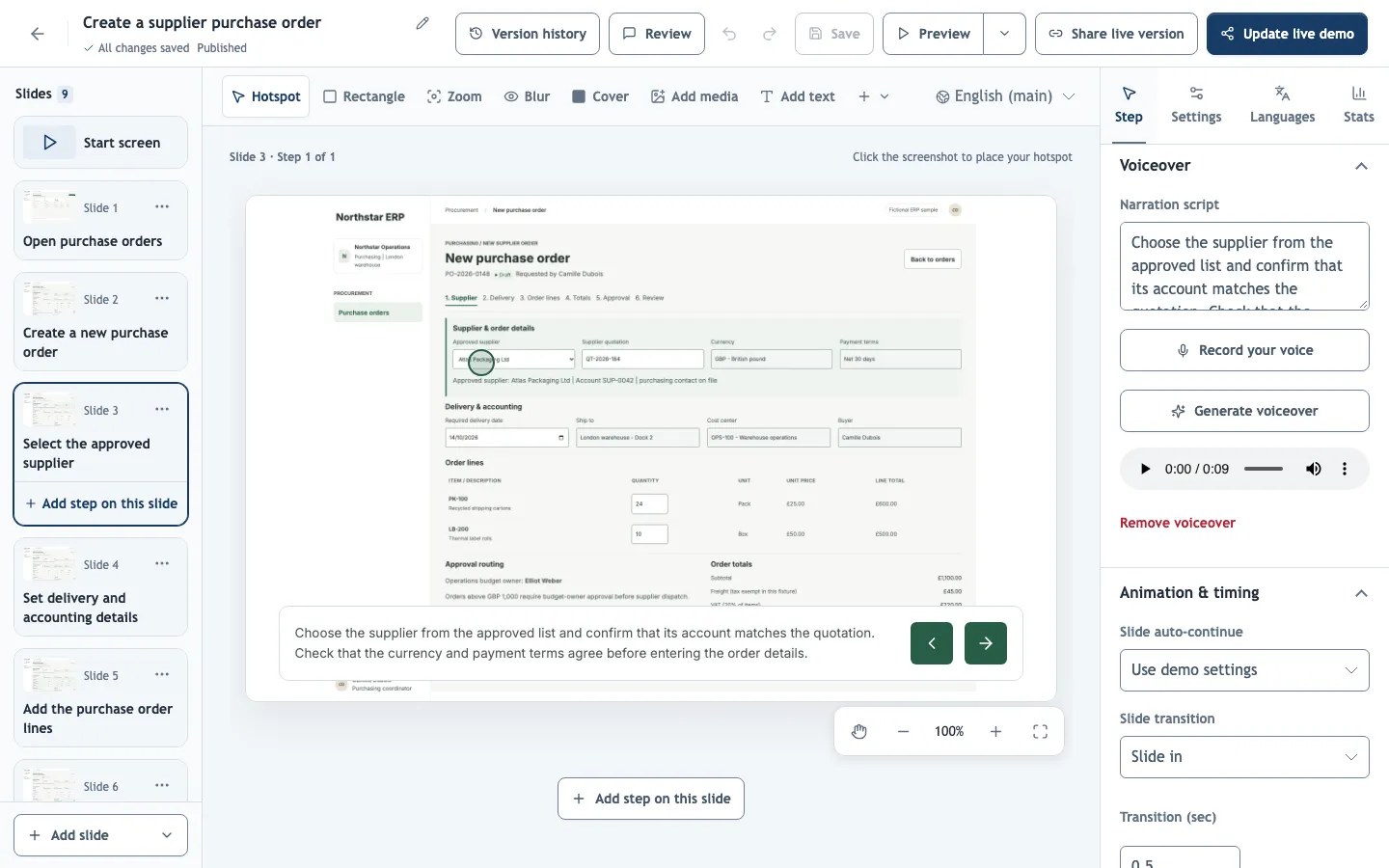
AI voiceovers
Generate voiceover in the step's Voiceover section reads the Narration script, or the step's description when the script is empty. Write a script when the spoken version should differ from the text on screen, for example to spell out abbreviations or add context the text box has no room for.
Generate all voiceovers (under Settings → Quiz, voice & export) creates every missing clip for the selected editing language, including the opening and closing screens. Generate after the text is final and after translating, because each language has its own clips.
Voice and speed
Voice settings sets the Voice and Speech speed for each language. Choose them before generating everything: existing clips keep the voice they were made with.
With an ElevenLabs voice model, Voice offers a list of multilingual ElevenLabs voices, and Other voice ID… takes any voice from your ElevenLabs account. Eleven v4 Turbo adds Accent or narration style, a direction the voice performs rather than reads aloud; accents are experimental and vary by voice, so preview one clip before generating everything. Eleven v4 Turbo sets its own pace, so speed is not available. When ElevenLabs generates several clips, each one is conditioned on the neighbouring scripts so the narration flows from step to step.
Change an existing voiceover
Generating never overwrites a clip that already exists. To use a new voice, speed or script, Remove voiceover on the step first, then generate again. Editing a step's text marks its generated voiceover as out of date.
Regenerating an unchanged voiceover reuses the saved audio at no cost; a new script, voice, style or speed uses your AI allowance.
Record your own voice
Record your voice records up to 4 minutes 30 seconds with your microphone. It uses no AI and needs microphone permission over a secure (HTTPS) connection.
- Silence before your first word and after your last is trimmed automatically; adjust the cut on the waveform if needed.
- Automatic audio processing reduces noise and evens out the volume. Turn it off if you recorded in a studio.
- A recording belongs to the selected language and stays in place when you edit the text, so re-record it yourself when the instructions change.
Voiceover history lists every generated and recorded clip with its language, text and voice.
Background music
Settings → Background music plays one track under the whole demo: from the included library (CC0, free for commercial use) or uploaded (MP3, OGG or WAV, up to 10 MB). Keep the Volume low when the demo has narration. The player's sound button mutes music and voiceovers together.
Voiceovers and music in shared links, embeds and exports change only after you publish again.