Browser recorder
The browser recorder is an extension for Chrome, Edge and Firefox. It records in your own browser, so it works with sites you are already signed in to, intranet tools, VPN-only apps and local development servers. When you upload, AI writes the titles, descriptions, narration scripts and opening and closing screens.
Install the recorder
Settings → Browser recorder links to the Chrome Web Store (also for Edge and other Chromium browsers) and Firefox Add-ons. If your organization blocks the stores, Manual installation (ZIP) offers packages:
- Chrome, Edge & Chromium: unzip the download, open
chrome://extensions, enable Developer mode and choose Load unpacked. - Firefox desktop: open
about:debugging#/runtime/this-firefox, choose Load Temporary Add-on and selectmanifest.json. Firefox removes temporary add-ons when it restarts.
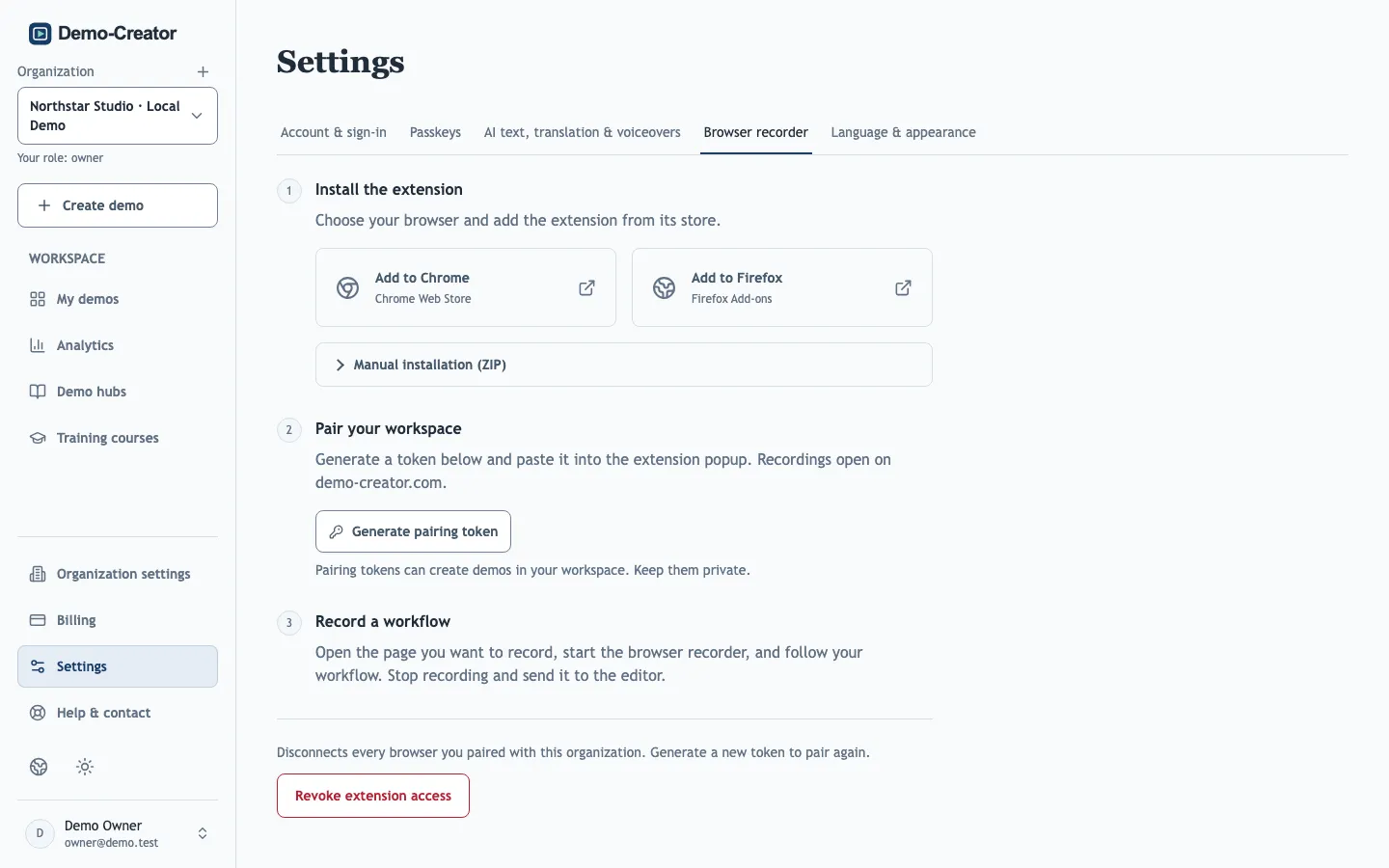
Pair it with your workspace
A pairing token connects the recorder to one organization: the one selected in the sidebar when you generate the token. Recordings always go there.
- Select the organization that should receive your recordings.
- In Settings → Browser recorder, select Generate pairing token and copy it.
- Paste it into the extension popup and select Save connection.
A pairing token can create demos in your workspace. Generating a new token revokes the previous ones, and Revoke extension access disconnects every paired browser. Changing your password, your role or your organization membership also disconnects the recorder.
Choose a capture mode
| Mode | Best for |
|---|---|
| Current browser tab | Workflows with typing. Each click becomes a step; with Input videos on, typing and form changes are kept as short clips. |
| Website clicks | The best AI text. The hotspot frames the exact element you clicked, and the visible page text is sent to the AI with each screenshot. Typing is not recorded. |
| Desktop app or screen | Applications outside the browser. Each changed view is saved as a screenshot; you place the hotspots in the editor afterwards. No audio is recorded. |
Record
Demo context is required: describe the product, the audience and the goal of the workflow in a few sentences (up to 4,000 characters). The AI uses it for every step, so a good context saves editing each description. Choose the demo Language at the same time.
Then record the task at a steady pace and upload. Consecutive clicks on an unchanged screen share one slide, with a step for each click. The recording stays on your device until you upload it.
One recording holds up to 50 steps. For longer workflows, upload and continue with a second recording, or add slides in the editor.
Privacy and limits
- Browser-tab captures cover readable passwords and codes they detect. Names, emails and other data stay visible: review every screenshot and cover sensitive information before publishing.
- Desktop captures cannot detect passwords at all. Hide secrets before you start.
- Input clips on a slide with covers are published as still images.
- Browser settings pages, extension stores and some embedded frames cannot be recorded.
- AI writing counts toward your organization's AI allowance, or uses your personal key on plans that allow it.
- Disconnect in the popup deletes the local token and any unsent recording. Uploaded demos are unaffected.