Assignments and cohorts
Owners and admins. An assignment links one email address to a course, with an optional deadline and reminders. Assigned people appear in the course results before they start, so you can see who has not begun.
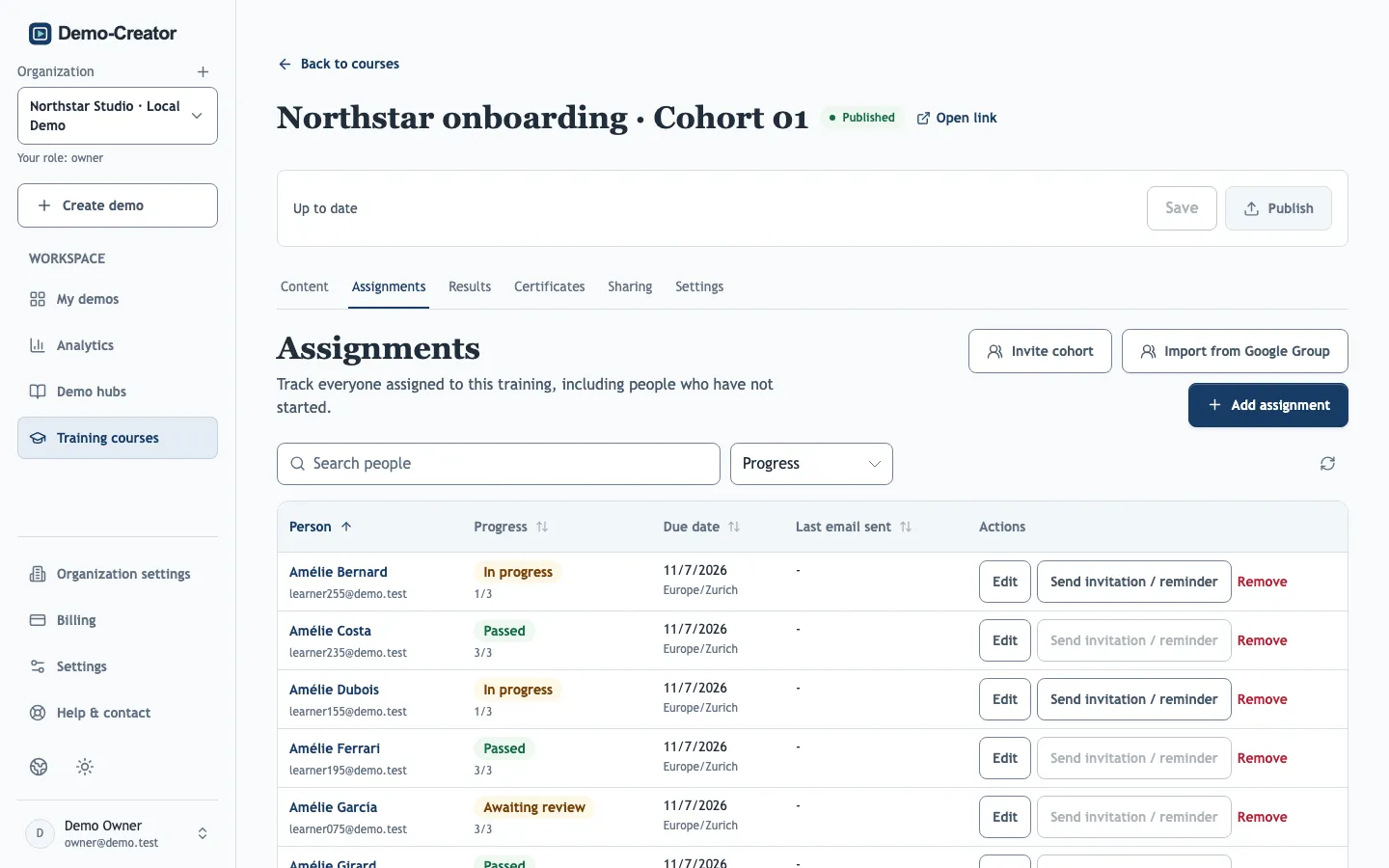
Assign a course
Add assignment on the Assignments tab takes one or more email addresses. Each address has one assignment per course; adding an address that is already assigned keeps its existing settings.
Learners must sign in to the course with the assigned address for their progress to count toward the assignment. Tell them which address to use if they have several.
Deadlines and reminders
- The Due date uses the Deadline time zone you choose, so set the learners' time zone, not yours.
- A Reminder interval (days) of 1–30 sends the invitation automatically, then a reminder every n days until the learner completes the course. 0 sends nothing automatically; use Send invitation / reminder to send one by hand.
- Completed assignments never receive reminders. Emails are sent only for published courses and need email delivery on your installation.
The roster shows when each person was last emailed, including failed deliveries. Remove deletes the assignment but keeps recorded progress.
Cohorts
A cohort is a saved group of people you train together, for example Sales onboarding – March. Create one in Training courses → Cohorts by pasting one person per line (an email address, then an optional name) or importing a CSV file.
Assigning a cohort adds everyone who is not yet assigned to the course, with the deadline and reminders you set now. People already assigned keep their settings, and the summary shows how many invitation emails will be sent before you confirm. Invitations to an unpublished course are sent once it is published.
Deleting a cohort keeps its people's assignments and progress.
Import from Google Groups
On plans with the Google Workspace integration, Import from Google Group creates assignments for the members of a group. Nested groups are expanded, and people outside your connected domain are not selected automatically.
With Keep this group synchronized every 24 hours, new group members are assigned automatically and people who leave the group lose access to the course. Their progress is kept.