Certificates
Owners and admins. Courses can issue PDF certificates to learners. Each certificate has a public verification link, so anyone can check that it is genuine.
Create certificates
Create certificates on the course's Certificates tab opens the Training certificate wizard.
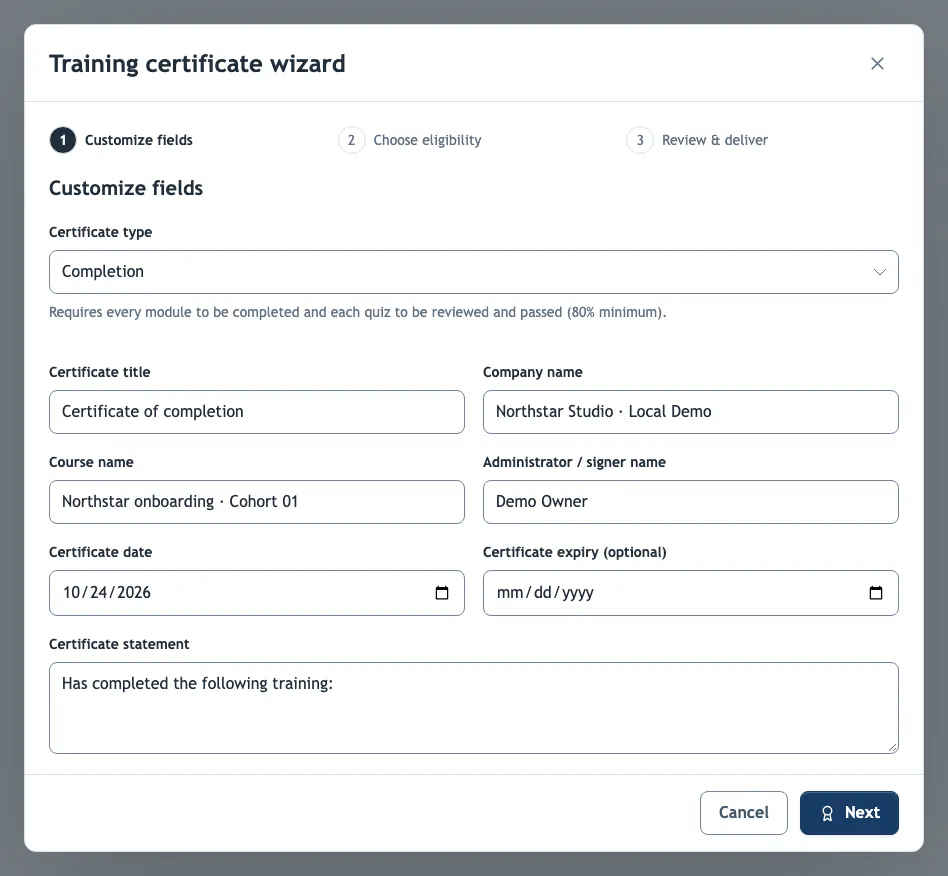
1. Customize fields
Choose the Certificate type first:
- Participation — the learner started at least one module.
- Completion — every module completed and each quiz reviewed and passed at the course pass mark.
Set an expiry for training that must be renewed, such as safety inductions; the verification page then shows when it expired. The statement, extra fields and email can use these tokens:
| Token | Replaced with |
|---|---|
{participant} | The learner's name |
{company} | The company name |
{training} | The course name |
{date} | The certificate date |
{admin} | The administrator or signer name |
{grade} | The learner's overall grade |
2. Choose eligibility
- All participants — everyone with saved progress in the course.
- Only participants meeting a minimum grade — the grade is the percentage of correct answers across all graded answers.
- Require completion of every demo in the course narrows either choice to learners who finished every lesson.
The recipient list explains why each person is or is not eligible. People who already hold a valid certificate start unselected, so issuing again does not duplicate certificates by accident.
3. Review & deliver
Preview the certificate for any participant, then download the PDFs or email them. Each participant receives a separate email with their own PDF; if some emails fail, Retry remaining emails sends only those.
Automatic certificates
Issue certificates automatically, above the list on the Certificates tab, gives each learner a certificate as soon as they qualify. It uses the same certificate types and minimum grade as the wizard. Saved settings apply at once; they are not part of the course draft, so publishing is not needed.
- People who already qualify when you turn it on receive a certificate within 15 minutes. A learner who completes a lesson is checked immediately, and so is a learner whose answers you grade.
- Each person receives one certificate of the chosen type. A certificate you revoke is not issued again automatically; issue a replacement with the wizard.
- An automatic certificate keeps its text instead of a PDF. The PDF is drawn when someone downloads it, with the name, grade and date as of issuing; the printed labels follow the language of the person downloading.
- With Email learners when their certificate is issued, learners receive an email with the course link and the verification link. Without email delivery, they download certificates from the course page or the learner portal.
Recertification
Valid for (months) makes automatic certificates expire. Start renewal (days before expiry) then restarts the course for each holder before their certificate runs out:
- The holder's results move to their Completions, marked as previous, and the course starts again for them. Quiz answers from the earlier round no longer count.
- An assigned learner's due date becomes the expiry date, and reminders follow the assignment's interval.
- The holder receives an email asking them to complete the course again. Passing again issues a new certificate with a new expiry date.
Renewal also applies to certificates of the same type issued with the wizard, and to certificates that have already expired when you turn it on. A change of validity applies to certificates issued afterwards.
Issued certificates
The Certificates tab lists every issued certificate as Valid, Expired or Revoked. Revoke a certificate issued by mistake: its verification page then shows that it is revoked, and the learner can no longer download it. Signed-in learners can download their own certificates from the course page.
The Certificate verification page shows the participant's name, the certificate title and type, the issue and expiry dates and the status. It never shows the learner's email or the PDF itself.
Issued PDFs count toward your organization's storage. Deleting the course deletes its certificates and their verification pages.