What viewers see
People who open a shared link or an embed use the Demo-Creator player. They need no account. Preview your demo to see exactly what they get.
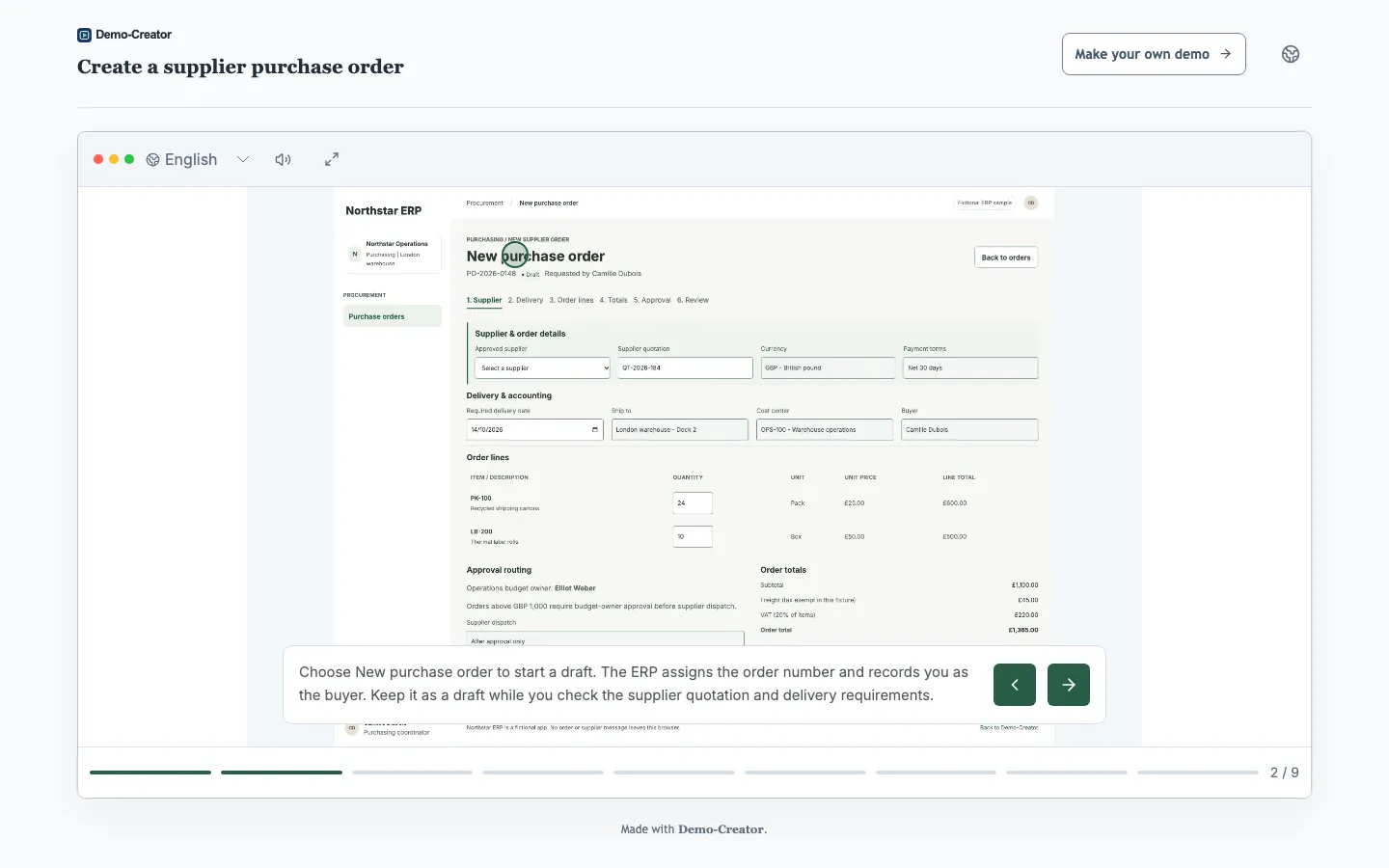
Navigation
- Clicking the hotspot moves to the next step. On a slide with several numbered hotspots, clicking one jumps to that step.
- The step bar below the demo lets viewers jump to any step, unless you hide it.
- On a keyboard, → or Space goes forward (and starts the demo from the start screen) and ← goes back.
- On phones, swiping left goes forward and swiping right goes back.
- Pause demo stops a self-running demo; Subtitles shows the narration as text, and starts on when you turn it on by default.
Sound
Browsers block audio until the viewer interacts with the page, so the player asks for a click before it plays narration or music. The sound button mutes narration and music together.
Language
The player's controls follow the viewer's interface language (English, German, French, Spanish or Italian). The content opens in the demo's main language, or in the language set by the link; viewers switch with Demo language. See Which language viewers see.
Protected demos
- Password — the viewer enters the password.
- Email audience — the viewer enters an email address. If it is allowed, they receive a one-time link valid for 15 minutes, and access then lasts 24 hours on that device. Addresses that are not allowed receive no message, so tell your audience which address to use.
- Expired links no longer open.
Contact forms and quizzes
A contact form remembers that it was sent, so returning viewers on the same device do not see it again. Quiz answers are saved only when viewers select Submit results; viewers who close the demo earlier leave no answers.
Training courses
Learners in a training course see the same player inside the course, plus course progress, sign-in and certificates.